> ## Documentation Index
> Fetch the complete documentation index at: https://statsig-preview.mintlify.site/llms.txt
> Use this file to discover all available pages before exploring further.
# How to run an AB Test in Javascript
> To run a simple A/B test on a webpage using JavaScript and the Statsig SDK, focusing on showing text with a blue or red background based on the variant assigned, follow these steps.
This guide includes creating a basic "Hello World" web application, integrating Statsig for A/B testing, and using the `getValue` method to determine the variant.
### Step 1: Create a Basic Web Application
1. **Set Up the HTML File**:
* Create an `index.html` file and add the following HTML code to set up a basic web page structure:
```html theme={null}
A/B Test with Statsig
Hello, World!
```
2. **Create the JavaScript File**:
* Create an `app.js` file in the same directory. This file will contain the JavaScript code to integrate with Statsig and determine the background color based on the A/B test variant.
### Step 2: Integrate Statsig SDK and Implement A/B Testing Logic
In your `app.js`, write the following JavaScript code:
```js theme={null}
document.addEventListener('DOMContentLoaded', function () {
statsig.initialize('your-client-sdk-key', {
userID: 'user_unique_id', // Use a real or generated user identifier
}).then(() => {
// Assuming 'backgroundColor' is the parameter defined in your A/B test configuration on Statsig
const backgroundColor = statsig.getExperiment('your_experiment_key').getValue('backgroundColor', 'white');
const abTestTextDiv = document.getElementById('ab-test-text');
abTestTextDiv.style.backgroundColor = backgroundColor;
});
});
```
* Replace `'your-client-sdk-key'` with your actual Statsig Client SDK Key.
* Replace `'your_experiment_key'` with the id of your experiment configured in Statsig.
* This code assumes that the A/B test in Statsig is set up with a parameter named `backgroundColor`.
### Step 3: Creating A/B Test in Statsig Console
1. **Log In to Statsig**:
* Access the Statsig console by logging in or signing up at [Statsig's website](https://console.statsig.com/).
2. **Create an Experiment**:
* In the Statsig console, navigate to the "Experiments" section and click "Create Experiment".
* Enter the experiment details:
* **Name**: Provide a unique name for your experiment (e.g., `your_experiment_key`).
* **Type**: Choose "Experiment".
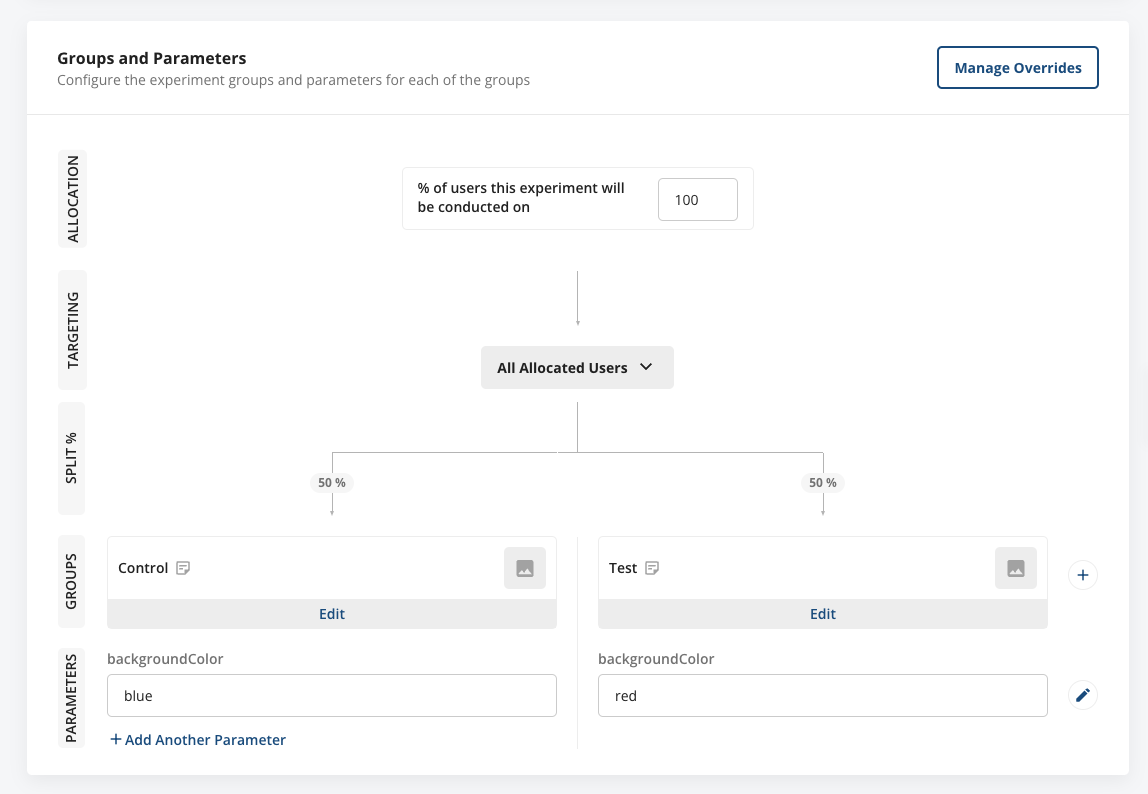
* **Parameters**: Add a parameter named `backgroundColor`. For each variant (e.g., `control` and `test`), assign `blue` to one and `red` to the other as the value for `backgroundColor`.
* Configure other settings as needed, such as the percentage of users included in the experiment and targeting rules.
 3. **Start the Experiment**:
* Once your experiment is configured with the necessary variants and parameters, save and start the experiment to make it active.
By following these steps, you've created a simple web application that integrates with Statsig for A/B testing, using the `getValue` method to dynamically apply styling based on the experiment's variant. This setup enables you to conduct A/B testing directly in your web applications, allowing you to experiment with different user experiences and measure their impact.
3. **Start the Experiment**:
* Once your experiment is configured with the necessary variants and parameters, save and start the experiment to make it active.
By following these steps, you've created a simple web application that integrates with Statsig for A/B testing, using the `getValue` method to dynamically apply styling based on the experiment's variant. This setup enables you to conduct A/B testing directly in your web applications, allowing you to experiment with different user experiences and measure their impact.